Batch Electronic Eligibility Process
Contents
Eligibility Request (Create 270 File)
Upload Eligibility Report
to Payor/Clearinghouse Website.
Receiving the Eligibility
Response
Upload the Eligibility
file to Epitomax
Eligibility Request (Create 270 File)
You
must have the 270/271 transactions enabled with your payor/clearinghouse prior
to using this feature, and the PsyTech Solutions staff must configure Epitomax
for it as well.
·
Go
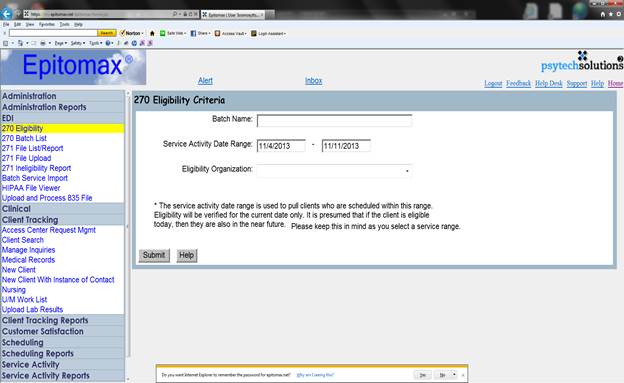
to the EDI menu and click on 270 Eligibility
·
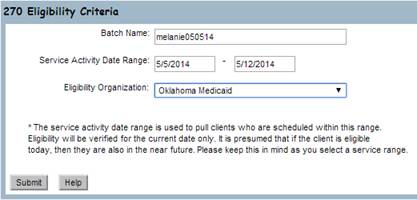
Enter
a Batch Name (your name and the date
or similar)
·
Select
the desired Eligibility Organization
from the drop-down list
·
Click
on the Submit button
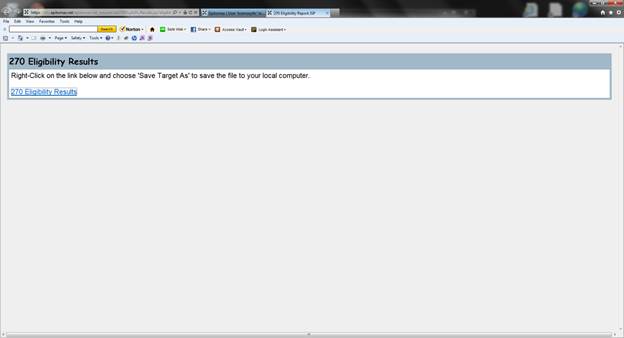
Right-click on
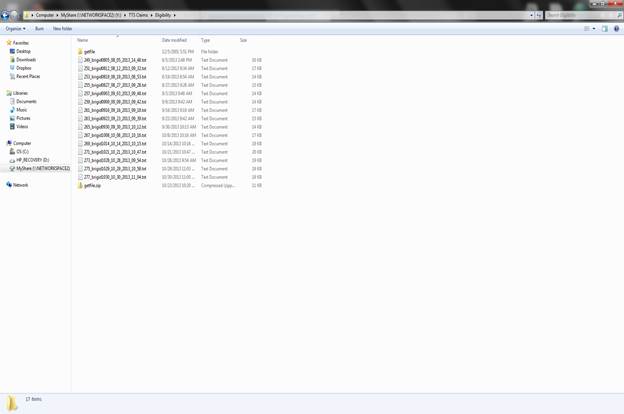
the 270 Eligibility Results link and choose ‘Save Target As’ – Save the file on
your computer or network.
Upload Eligibility Report to Payor/Clearinghouse
Website
Sign on to the
payor/clearinghouse website
Upload the
file you saved on your computer/network to the payor/clearinghouse web portal
Receiving the Eligibility Response
·
Login
to the payor/clearinghouse web portal and download the 271 eligibility response
file to your computer/network.
Upload the Eligibility file to Epitomax
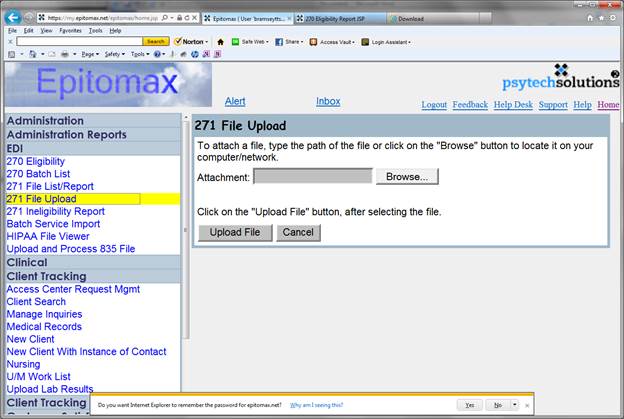
Go to the EDI menu and click on 271
File Upload
·
Click
on the Browse button and select the
file; click Upload File
·
Enter
Batch Name (same as the Eligibility Inquiry file – your name and the
date)
·
Click
Submit
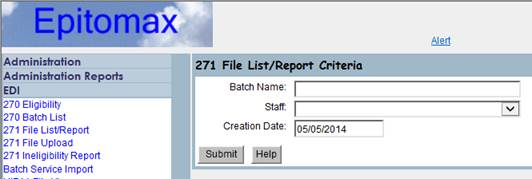
Go to the EDI menu and click on 271
File List/Report
·
Leave
fields blank and click Submit
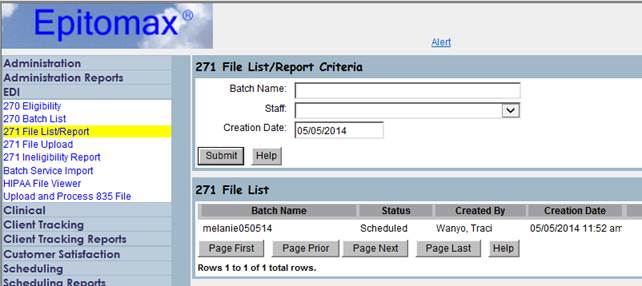
The status
will show as Scheduled for a few
minutes… Click 271 File List/Report
to refresh…
Once the status is Complete, continue to the next step…
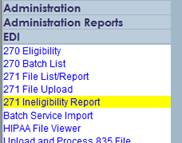
Ineligibility Report
Go to the EDI menu and click on 271 Ineligibility Report
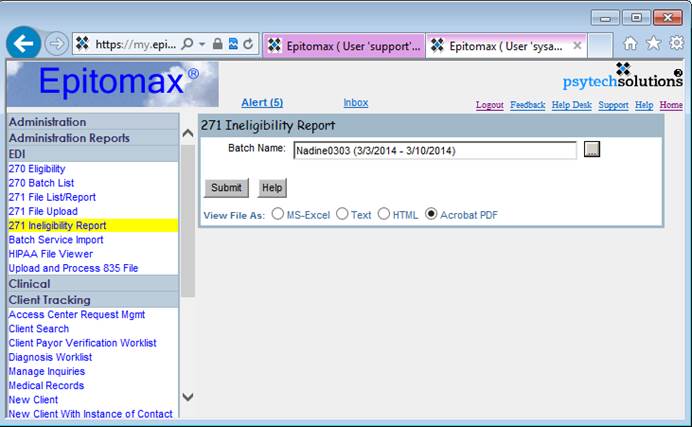
·
Select
the desired batch name using the picklist button and click on the Submit button.